Budget Analysis Report

warning

This is an experimental feature. That means we’re still working on finishing it. There may be bugs, missing functionality or incomplete documentation, and we may decide to remove the feature in a future release. If you have any feedback, please open an issue or post a message in the Discord.

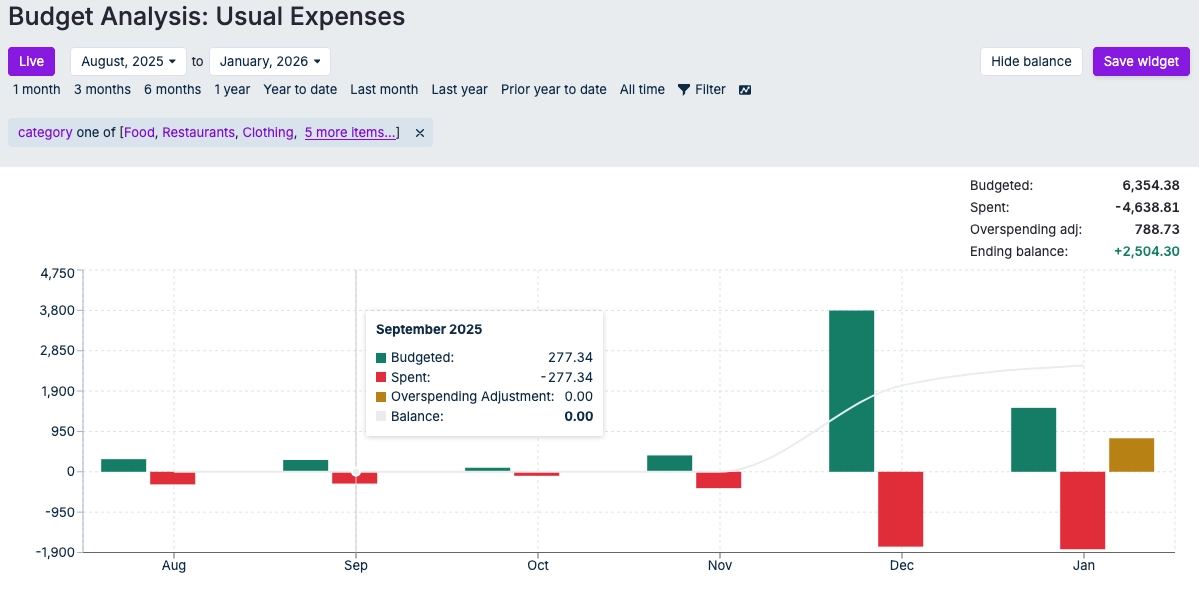
Example image of Budget Analysis Report

The Budget Analysis is a financial planning tool, inspired by the Cash Flow report. It tracks your budgets over time. For any given month, the report starts with the previous month's balance and adding the amount budgeted (and spent) for each category during the month. Like Cash flow, it includes separate visualizations for the amount budgeted and expenses, as well as the remaining balance within the category.

How It Works

The balance tracks your budget performance over time. It starts with the previous interval's balance, adds the budgeted amount for the current interval, and subtracts actual spending. A positive balance indicates under-spending while a negative balance shows over-spending.

Key Features

Time Period Controls

Control the date range for your analysis:

  • Live/Static toggle: Switch between dynamic (rolling window) and fixed date ranges
    • Live: The report automatically updates to show a rolling time window relative to the current date
    • Static: The report shows a fixed date range that doesn't change
  • Date range dropdowns: Select specific start and end months
  • Quick range buttons:
    • 1 month: Shows the most recent month
    • 3 months: Shows the last 3 months
    • 6 months: Shows the last 6 months
    • 1 year: Shows the last 12 months
    • Year to date: Shows from January 1st to the current month
    • All time: Shows your entire budget history

Category Filtering

Filter the report to analyze specific categories:

  1. Click the Filter button (funnel icon) in the header
  2. Select Category as the field
  3. Choose an operator:
    • is: Analyze a single category
    • is not: Exclude a specific category
    • one of: Analyze multiple categories
    • not one of: Exclude multiple categories
  4. Select categories and click Apply

Managing Filters

Active filters appear as chips below the header:

  • Click the on a filter chip to remove it
  • Click on a filter chip to edit its settings
  • When multiple filters are applied, choose how they combine:
    • and: All conditions must be met (more restrictive)
    • or: Any condition can be met (more inclusive)

Display Options

Customize how the data is presented:

  • Graph type toggle: Switch between visualization styles

    • Line chart: Better for viewing trends over time (click the bar chart icon to switch)
    • Bar chart: Better for comparing discrete monthly values (click the line chart icon to switch)
  • Show/Hide balance: Toggle the running balance line visibility

    • Click Hide balance to remove the balance line from the graph
    • Click Show balance to display the balance line

Summary Statistics

The report displays key metrics for the selected time period:

  • Total budgeted: Total amount budgeted across all months in the period
  • Total spent: Total amount actually spent across all months (displayed as positive)
  • Total overspending adj: Total overspending adjustments for categories without rollover enabled
  • Ending balance: The final balance at the end of the period, accounting for carryover rules

Understanding the Balance Calculation

The budget balance calculation respects your category carryover settings:

  1. Starting balance: Begins with the previous month's balance
  2. Add budgeted: Adds this month's budgeted amount
  3. Subtract spent: Subtracts actual spending
  4. Carryover rules:
    • Positive balances always carry over to the next month
    • Negative balances only carry over if the category has "Rollover overspending" enabled
    • Negative balances for categories WITHOUT rollover are treated as overspending adjustments (zeroed out)

Overspending Adjustments

When a category has a negative balance and "Rollover overspending" is disabled, that overspending is adjusted (removed) rather than carried forward. The overspending adjustment line tracks these amounts, helping you see where budget discipline was reset rather than carried forward.

Example:

Previous balance: $100
Budgeted: $200
Spent: $250
Category has rollover: No
New balance: $200 + (-$250) = -$50
Overspending adjustment: $50 (negative balance is zeroed)
Carried to next month: $0

A positive balance means you're under budget overall, while a negative balance indicates overspending that needs to be addressed.

Saving Widget Settings

When viewing the full report, customize your settings:

  1. Adjust the date range
  2. Add/remove category filters
  3. Toggle between line and bar chart
  4. Show or hide the balance line
  5. Click Save widget to persist all settings

The saved configuration will be applied to the dashboard widget and remembered when you return to the full report.

Use Cases

Track Monthly Performance

View how you're doing against your current month's budget:

  • Set date range to 1 month
  • Review budgeted vs spent amounts
  • Check if balance is positive or negative

Analyze Specific Spending Areas

Focus on particular categories:

  • Add category filters (e.g., "Groceries", "Dining Out", "Entertainment")
  • Track discretionary vs essential spending separately
  • Identify problem categories

Understand your budgeting habits over time:

  • Select Year to date or All time
  • Use line chart to see trends
  • Look for patterns in the balance line:
    • Steadily increasing: You're consistently under budget
    • Steadily decreasing: You're consistently over budget
    • Fluctuating: Mixed performance

Compare Planned vs Actual

Find months with significant variances:

  • Use a 6-month or 1-year range
  • Look for gaps between budgeted and spent lines
  • Investigate months where spending significantly exceeded budgets

Tips and Best Practices

Effective Category Selection

  • Include related categories: Group similar spending types together (e.g., all food-related categories)
  • Exclude irregular categories: Filter out one-time expenses or income categories for clearer trends
  • Track problem areas: Focus on categories where you frequently overspend

Time Period Recommendations

  • 1-3 months: Good for current budget monitoring
  • 6 months: Ideal for identifying seasonal patterns
  • 1 year: Best for comprehensive annual review
  • All time: Useful for understanding long-term budgeting habits

Balance Interpretation

  • Consistently positive: You're building budget reserves, which can handle future overspending
  • Occasionally negative: Normal for months with irregular expenses; watch for recovery in subsequent months
  • Consistently negative: Indicates systematic overspending that needs addressing
  • Volatile balance: May indicate seasonal expenses or inconsistent budgeting

Limitations

  • Monthly aggregation only: The report works with monthly budget periods and cannot show daily or weekly breakdowns
  • Budget categories only: Only includes categories used in your budget; off-budget accounts and transfers are excluded
  • Historical data: Requires existing budget and transaction data to display meaningful results

Troubleshooting

No data appears

  • Verify that you have budgeted amounts in the selected time period
  • Check that you have transactions in budgeted categories
  • Ensure category filters aren't excluding all categories
  • Confirm the date range includes months with budget activity

Balance seems incorrect

  • Review category carryover settings in the budget page
  • Verify that all transactions are properly categorized
  • Check for hidden categories that might be excluded
  • Remember that the balance is cumulative across all selected categories

Widget not updating

  • Make sure to click Save widget after making changes in the full report
  • Changes made in the full report without saving won't persist to the dashboard
  • The widget automatically refreshes when new transactions are added